
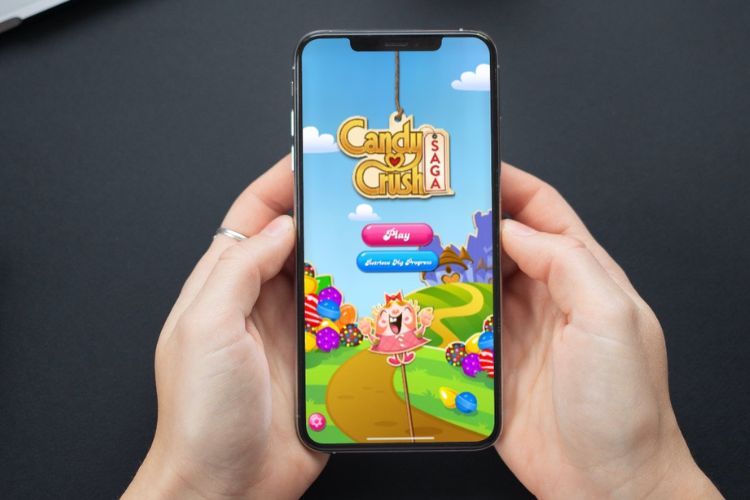
There are a lot of games for iPhone, and while the big names are usually fun enough to play, if you’ve ever tried out free games such as Crowd City, or Helix Jump on your iPhone you must have noticed the sheer number of ads that ruin your experience. Now, ads in free games are not bad, because they let developers earn income. However, some games overdo ads out of greed, and that’s where you might be thinking of ad blockers for iPhone. Well, fortunately, there’s a very easy way to do this. Here’s how to block ads in iPhone games.
The easiest way to block ads in iPhone games is to use Adguard DNS to route your internet traffic. This DNS is made with the purpose of blocking ads, so it can block ads in pretty much every game out there. I have tested Adguard DNS with free games like Crowd City, Helix Jump, and others that usually show a lot of ads. Adguard DNS completely blocks all ads in games like these. Here’s how to set it up.
Note:
Once the profile is installed, Adguard DNS should be active on your iPhone. However, if it isn’t, or if you just want to check whether it’s been activated, follow the steps below.
Pro-tip:
While the method we’ve mentioned above works perfectly fine and blocks all ads in every game I’ve tested, if you’re looking for some other methods to try and block ads in your games, read on. Here are some of the best alternative ways to block ads in iPhone games.
No prizes for guessing! Airplane mode has long been a pretty effective tool for blocking ads in games on iPhone and iPad. Since most ads use an internet connection to serve ads, you can easily block them by just turning on the airplane mode. Thanks to the control center, activating this mode is a breeze.
When the airplane mode is activated, both cellular and Wi-Fi icons are grayed out. However, unlike the cellular icon, the Wi-Fi icon can be turned on even when airplane mode is active.
With no internet connection on your iPhone, ads won’t show up in your games. So, go ahead and play your favorite games with the desired peace of mind knowing that the random ads won’t distract you. In certain cases, you might see blank spaces for ads. Keep in mind that not all games are designed to work offline and there could be many features that may not work when your device is not connected to the internet. If you are ready to cope with these downsides, the airplane mode trick is for you.
Another easy way to block ads on iOS is to disable cellular and Wi-Fi from the Settings app.
With the internet connection completely disabled, ads won’t show up in your iPhone games. Thus, you can take on your favorite games without any interruption.
iOS allows you to manage apps’ access to cellular data. Hence, you can allow/disallow specific apps from having access to cellular data. Instead of completely disabling the internet connection on your entire device, it offers you the desired flexibility to put only certain apps/games offline. You can use this very feature to block ads in your iPhone games.
While App Store is laden with a ton of adblockers, almost all of them are designed for Safari. Though there are some adblckers that claim to block ads across apps and games on iPhone, they do not live up to the expectation. So, you’ve got to be very choosy while picking them up for blocking ads inside games.
Having tried several adblockers – both paid and free, I have found Luna a pretty safe bet. Bear in mind that installing Luna adblocker is a little different as it does not offer a full-fledged app. You will need to install Luna’s adblocking VPN profile via Safari and trust its certificate.
That’s it! Now, go ahead and play any of your favorite game without having to deal with random ads. The Luna adblocker will work reliably in keeping ads at bay.
Well, that’s how you can block ads in iPhone games easily. Whether you’re using Adguard DNS, or an alternative such as Luna ad blocker, or anything else, hopefully you’re now able to play your favourite games without getting ads. So, which method worked best for you and which is the method of choice that you’re using on your iPhone to block ads? Let us know in the comments below.
Greetings, tech titans and fellow literary time-travelers! I’m Akshay, your tech-whisperer and Harry Potter’s number one stalker – seriously, don’t ask me how many times I’ve read those books; it’s borderline unhealthy. Working in the tech journalism industry since 2016, I have 7 years of experience covering everything from technology news, to well-researched resource articles. Now the Content Strategist at Beebom, I often pen down op-eds for our website, sharing expert commentary on the latest in technology, AI, and electric cars.
01
02
03
04
05
About The Author



More Stories
Global Encryption Day Summit 2026: Five Key Conversations on the Future of Digital Trust
What Global Data Tells Us About the Economics of IXPs
We Shouldn’t Have to Give Up Our Safety Online to Be Safe